
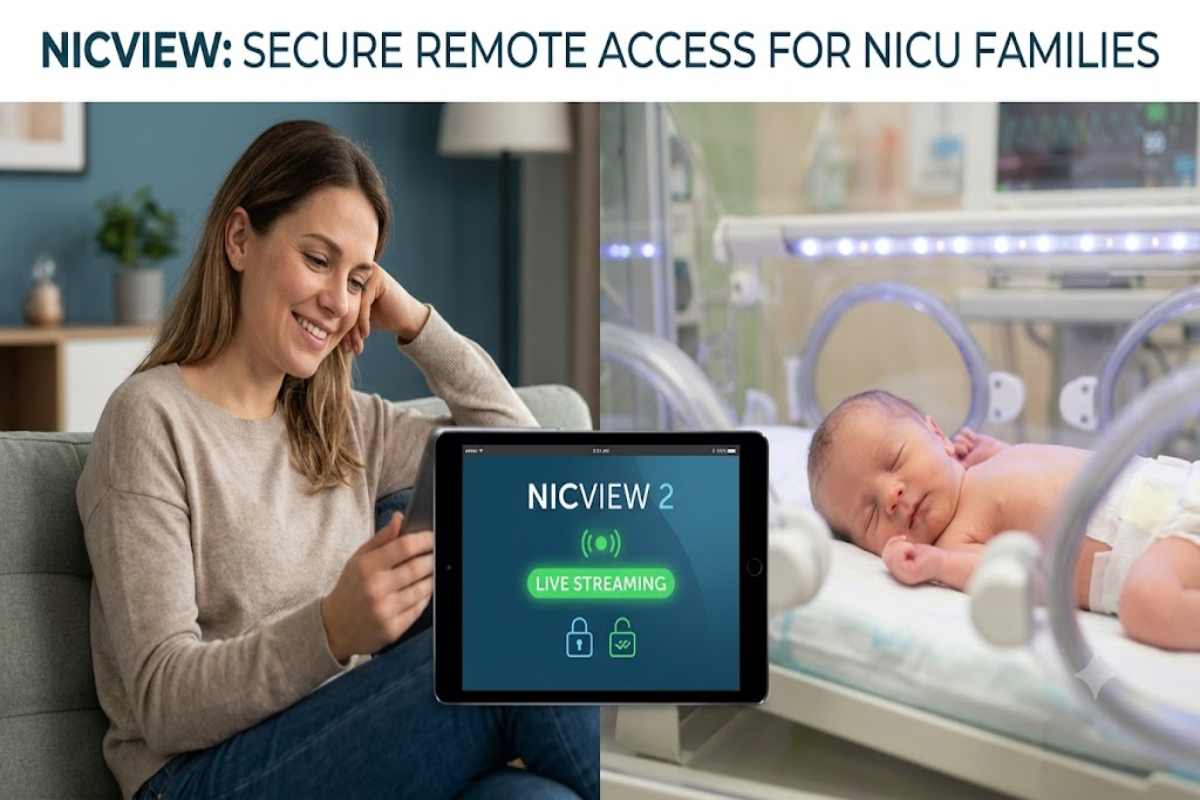
NICVIEW login is the sign-in process used to access the NICVIEW web camera system, which allows authorised families and healthcare staff to securely view an infant in a participating NICU. NICVIEW 2 provides password-protected access and encrypted connections for remote video viewing.
The NICVIEW is a remote video system designed for neonatal intensive care environments. It allows authorised parents and family members to view a newborn through a camera installed at the hospital, helping families stay connected when they cannot physically be at the bedside. The NICVIEW login is therefore more than a conventional website sign-in: access is normally provided through the participating hospital or NICU.
Because NICVIEW access is tied to a hospital’s camera and user arrangements, someone searching for a general username and password should avoid using credentials found on random websites. The safest approach is to use the credentials supplied by the hospital and access the official NICVIEW service.
What Is the NICVIEW Portal?
NICVIEW is a web-based camera system from Natus that provides authorised remote video access to infants in participating neonatal and paediatric units. NICVIEW 2 supports real-time video streaming and can be accessed through compatible online devices.
The system has two broad user environments:
| User | Typical purpose |
|---|---|
| Parents and family | View the assigned newborn remotely |
| Hospital staff | Manage cameras, users and access |
| Workflow managers | Manage camera assignments and related functions |
| System administrators | Manage users, settings and system controls |
The exact permissions depend on the user’s role and the hospital’s configuration.
Who Uses NICVIEW?
NICVIEW is primarily intended for families with an infant receiving care in a participating NICU or paediatric unit. Hospital staff may also use the management portal to control cameras and user access.
A key point is that not every hospital offers NICVIEW. Natus currently describes NICVIEW 2 as a system sold exclusively in the USA and Canada, so availability can depend on the hospital and region.
For users in India, this means that searching for a universal NICVIEW account may not work. Access must generally be associated with a participating facility.
NICVIEW Login Workflow
The basic access process is straightforward, although individual hospitals may provide slightly different instructions.
Step 1: Obtain your credentials
The hospital or NICU should provide the relevant login details or instructions. Do not rely on credentials published by third-party websites.
Step 2: Open the authorised NICVIEW service
Use the web address supplied by your hospital. Natus documentation describes secure browser access to the NICVIEW service over HTTPS/SSL.
Step 3: Enter your credentials
Enter the username and password provided to you. Check carefully for typing errors, spaces and incorrect capitalisation.
Step 4: Complete any required consent
Depending on the facility’s configuration, users may be required to accept online consent terms before accessing the service.
Step 5: View the assigned camera
Once authenticated, the system establishes a secure session for the authorised camera. Video begins when a viewing request is made.
Login Workflow at a Glance
| Stage | What happens |
|---|---|
| 1 | Hospital provides access |
| 2 | User opens the authorised NICVIEW service |
| 3 | Username and password are entered |
| 4 | Consent may be requested |
| 5 | System authenticates the account |
| 6 | Assigned camera becomes available |
What Services Are Available After Login?
For families, the primary purpose is remote viewing of the assigned infant’s camera.
The system can provide HD video and is designed to operate in low-light conditions. NICVIEW 2 also supports app-based access on Android and iOS devices according to Natus.
Hospital-side features can be considerably broader. Depending on permissions, staff may manage camera status, assignments, family notes, users and other administrative settings.
NICVIEW Login Problems and Troubleshooting
Login problems do not necessarily mean the NICVIEW system is unavailable. Several common issues can cause access failures.
Incorrect Username or Password
Re-enter the credentials supplied by the hospital. If the password has been changed or forgotten, contact the appropriate hospital administrator or NICVIEW support rather than trying credentials found online.
Administrative users can reset passwords for system users in the management portal.
Camera Is Offline
Successful login does not guarantee that video will always be available. A camera may be offline or placed into Privacy Mode. The NICVIEW documentation explains that Privacy Mode immediately disables the video stream.
In that situation, contact the NICU rather than repeatedly changing your account details.
Video Pauses or Does Not Load
Internet connection quality can affect the viewing experience. The NICVIEW system uses a secure connection between the viewer, cloud services and camera infrastructure.
Try:
- Checking your internet connection.
- Reloading the authorised page.
- Closing unnecessary browser tabs.
- Trying another supported device.
- Contacting support if the issue continues.
Login Works but the Camera Is Missing
This may indicate an account, camera assignment or facility configuration issue. So the hospital staff can manage camera assignments and user access through the administrative portal.
Is NICVIEW Login Secure?
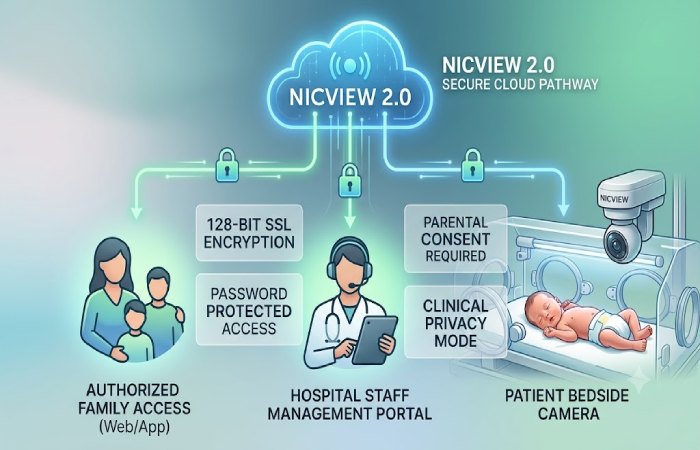
NICVIEW 2 uses security measures intended to protect access to the video stream. Natus states that the system uses password-protected access, end-to-end encryption and SSL authentication.
Its networking documentation also describes HTTPS/SSL connections between the user device, cloud services and camera infrastructure.
However, users should still follow basic account-security practices:
- Never share credentials publicly.
- Avoid saving passwords on shared computers.
- Use the official access route provided by your hospital.
- Log out when using a shared device.
- Do not install unofficial “NICVIEW login” software.
Important Privacy Point
NICVIEW access is intended to be restricted to the authorised newborn. Natus says parental access is limited to the user’s own newborn and that the system is designed with privacy controls.
The system documentation also indicates that login activity can include information such as username, IP address, approximate location and timestamp.
Supported Devices
NICVIEW 2 is designed for web-connected devices and Natus states that its app-based access supports Android and iOS devices.
| Device | General suitability |
|---|---|
| Smartphone | Suitable when supported by the facility/system |
| Tablet | Suitable |
| Laptop | Suitable |
| Desktop | Suitable |
| Shared/public computer | Not recommended for privacy |
Actual compatibility can depend on the current NICVIEW version, hospital configuration and network environment.
NICVIEW vs Typical Video Platforms
NICVIEW is different from ordinary consumer video platforms because access is connected to a clinical environment.
| Feature | NICVIEW | Typical video platform |
|---|---|---|
| Main purpose | NICU infant viewing | General video |
| Access | Hospital-authorised | Consumer account |
| Camera location | Hospital/NICU | User-controlled |
| Privacy controls | Clinical environment | General account controls |
| Camera management | Hospital staff | User |
| Live viewing | Yes | Often available |
| Intended audience | Families and authorised staff | General public/users |
This distinction explains why users cannot normally create a standard NICVIEW account independently.
Who Should Use NICVIEW?
NICVIEW is most useful for authorised parents and relatives who need remote visual contact with an infant in a participating facility.
It can be particularly practical when:
- A parent cannot remain at the hospital continuously.
- Relatives live far away.
- Travel makes frequent visits difficult.
- Families want visual reassurance between visits.
Therefore, NICVIEW should not be treated as a substitute for medical communication with the NICU. A live camera shows visual information but does not provide a clinical assessment.
Expectations: What NICVIEW Can and Cannot Do
A realistic understanding of the service is important.
NICVIEW can:
- Provide remote video access.
- Help families stay visually connected.
- Allow authorised users to view an assigned camera.
- Support secure online access.
NICVIEW cannot:
- Replace the medical team.
- Provide diagnosis or treatment advice.
- Guarantee uninterrupted video.
- Give unauthorised users access to a camera.
The system documentation specifically states that family support can help with login troubleshooting, while clinical questions direct to the hospital.
Pros and Limitations
Pros
- Remote access to an assigned NICU camera.
- Designed specifically for neonatal and paediatric environments.
- Security features including encryption and SSL authentication.
- Mobile access options for NICVIEW 2.
- Hospital-controlled camera management.
Limitations
- Availability depends on participating facilities.
- Access credentials are not normally self-create.
- Video quality depends on the system and connection.
- Camera availability can affect by privacy mode or offline status.
- It is not a replacement for direct medical communication.
Alternatives to NICVIEW
There is no single universal replacement because NICVIEW is normally integrated into the hospital environment. Some hospitals may offer their own secure bedside camera systems or another neonatal video platform.
When comparing alternatives, look for:
- Hospital integration.
- Secure authentication.
- Parent-controlled access.
- Mobile compatibility.
- Clear privacy policies.
- Reliable technical support.
For a NICU family, the hospital’s officially supported system is generally more important than choosing a consumer video application.
How to Get Help With NICVIEW Login
If you cannot sign in, first contact the NICU or hospital that provided your credentials. They can determine whether the account is active and whether the camera has assigne correctly.
Natus also provides product and technical support resources for its products. So its support pages direct NICVIEW users towards the appropriate sensory support channel.
Avoid entering your NICVIEW password into unofficial websites claiming to provide free access or shared accounts.
Frequently Asked Questions
What is NICVIEW login?
NICVIEW login is the authentication process used by authorized users to access the NICVIEW remote camera system. Thus, it allows eligible families or staff to access the appropriate NICU camera.
Where can I find my NICVIEW username and password?
Your hospital or NICU should provide your access credentials. Do not use credentials posted on public websites.
Why is my NICVIEW login not working?
Possible causes include incorrect credentials, a disabled account, connectivity problems, camera availability or facility configuration. Contact the hospital or appropriate NICVIEW support if basic troubleshooting does not resolve the problem.
Is NICVIEW safe to use?
NICVIEW 2 uses password-protected access, SSL authentication and end-to-end encryption according to Natus. Users should still protect their credentials and use only authorised access routes.
Can I use NICVIEW on my phone?
NICVIEW 2 supports app-based access on Android and iOS devices according to Natus. Availability and compatibility can depend on the facility’s implementation.
Final Thoughts on NICVIEW Login
The NICVIEW login process is designed to give authorised families secure remote access to an infant’s hospital camera. The most important point is that NICVIEW is a hospital-linked system rather than a conventional consumer website where anyone can simply register.
For login problems, use the credentials supplied by the hospital, check your connection and contact the NICU or authorised support team when the issue involves account access or camera availability. Therefore, Natus’ documentation confirms that the platform combines remote video access with security and hospital-controlled privacy features.