
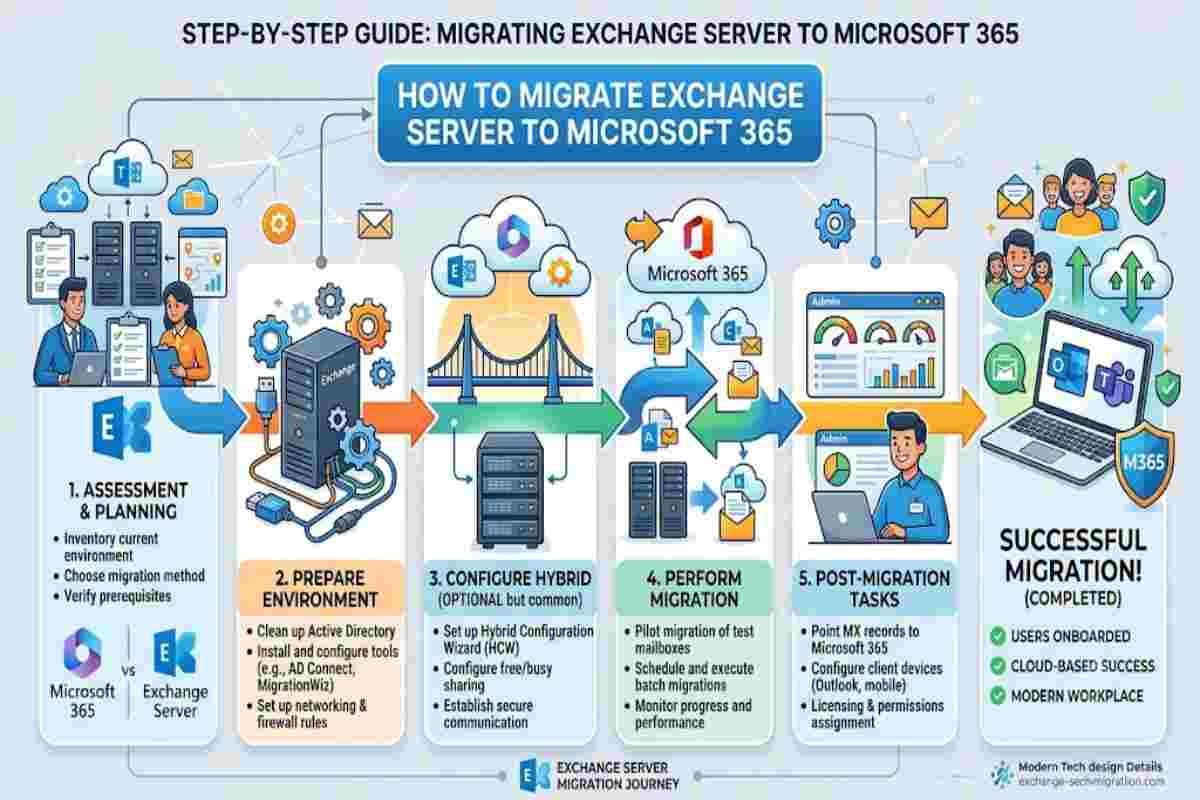
Microsoft ended support for Exchange Server 2016 and 2019 versions on October 14, 2025, making their end of life. Naturally, the previous versions have already met the same fate. Therefore, if your organization still relies on any of these platforms, now is the time to upgrade to a supported version. This is where Exchange Online, Microsoft’s cloud-based email service within Microsoft 365, can be a feasible option. This blog focuses on ways to migrate Exchange server to Microsoft 365 so that your email communication continues uninterrupted.
Why should you migrate your mailboxes to Microsoft 365?
Since Microsoft has already ended support for Exchange 2016, 2019, and previous versions, you may have to face several issues if you do not switch to the cloud.
-
Increased security liabilities
In the absence of the necessary security features, your Exchange Server environment will become vulnerable to new security threats.
-
Possibility of email blocking
Microsoft has started blocking and throttling emails from unsupported Exchange Server versions to Exchange Online, including Exchange Server 2019. This system of enforcement has mainly affected organizations that run a classic hybrid environment. They may be unable to route emails from an on-premises Exchange Server to Exchange Online through an on-premises inbound connector type.
-
Storage overheads
Staying with the on-premises architecture tends to incur expensive capital expenditure in terms of redundant storage overhead.
-
Licensing issues
Expensive license procurement for Windows Server, third-party backup software, spam-filtering gateways, client access licenses (CALs), and virtualization platforms also adds up to the mounting overheads.
-
Increased administrative burnouts
In the absence of official Microsoft support, you may need to deploy in-house staff or hire third-party service providers to manage your IT department. Tasks like managing Database Availability Groups (DAGs), SSL certificate renewal, transport queue resolution, database defragmentation, and disk space monitoring would require due attention and considerable financial expenses.
To avoid such situations while still keeping things on-premises, organizations may upgrade to Exchange Server Subscription Edition (SE). However, multiple features and security capabilities in Microsoft 365 make it a better option to leave your on-premises environment and migrate to Exchange Online.
Major prerequisites to Migrate to Microsoft 365
You would need to follow several essential steps before migrating your mailboxes and other related items to the cloud.
- Set up a Sender Policy Framework (SPF) record to find out valid email sources for the Microsoft 365 domain of your organization
- Set up Exchange Online Protection service to protect your mailboxes from malware and spam
- Install the latest Cumulative Updates (CU) to keep your mailbox updated and risk-free.
- Verify if your important on-premises legacy CRM and ERP applications, third-party add-ins, or Line-of-business software will work fine in Microsoft 365
- Encourage your workers to clean up projects from the Exchange Server before the start of migration. The less data you move, the quicker the migration process will be.
- This project clean-up task would include activities like organizing or purging active, abandoned, or stagnant shared mailboxes, public folders, or digital workspaces
Selecting the suitable Exchange server to Microsoft 365 Migration Method
Once you take care of the major prerequisites, the next move would be to select the right migration method. It should be according to the size, infrastructure, and downtime tolerance of your organization. Of the many approaches supported by Microsoft 365, following are the most relevant ones:
Cutover Migration
This method moves the mailboxes from the on-premises Exchange environment to Microsoft 365 in a single scheduled event.
- Suitable for smaller organizations that want a quick transition
- Copies all mailbox data beforehand, followed by redirecting the mail flow and DNS records with a final switch at a particular time
- Ideal to move around 150 or fewer mailboxes, but it can support around 2000 mailboxes
- After the shutdown, the local Exchange server shuts down completely
Pro: Does not require a long coexistence period between two environments
Con: Simultaneous migration of all mailboxes leaves less for troubleshooting during the transition
Staged Migration
This method allows moving mailboxes in batches instead of a simultaneous transition, making it work for organizations that want to carry out phase-wise migration.
- Suitable for businesses having more than 150 mailboxes, but are not ready for a complicated hybrid migration yet.
- Needs an older on-premises email infrastructure, such as Exchange 2003 or 2007, for migration.
- Not supported for Exchange 2010, 2013, 2016, 2019.
- Uses Microsoft Entra Connect (previously Azure AD Connect) to synchronize local user accounts to the cloud before mailbox migration
- Allows the on-premises and cloud users to email each other during the transition
Pro: Migration in small and controlled batches minimizes the chances of unexpected migration issues
Con: Managing two different environments together for a long time gives rise to mounting administrative overhead
Hybrid Migration
It allows the coexistence of on-premises Exchange and Exchange Online during migration, making it suitable for transitioning a large number of mailboxes to Microsoft 365 at the same time
- Allows users to exist simultaneously in either environment by sharing a unified Global Address List (GAL
- Full hybrid for permanent split-environment and minimal hybrid to speed up setup by skipping advanced feature configurations
- No hurry to migrate mailboxes, admins can move mailboxes in batches over weeks or months, ensuring the least user downtime risk and no network strain
- Enables users to move a mailbox back to an on-premises Exchange environment in case of an unexpected issue arising in the cloud
- The on-premises server must be running Exchange 2010 or recent versions with the latest CU updates, and directory synchronization maintenance through Microsoft Entra Connect
Pro: User’s Outlook profile gets automatically updated with the transition of a mailbox to the cloud, leading to zero user downtime. The user does not need to rebuild the email profile or lose access to emails.
Con: You need to have deep technical knowledge and IT experience to set up, patch, and manage the local server as well as the cloud environment simultaneously
Which migration method should you choose?
The selection of an appropriate migration method depends largely on your existing on-premises Exchange server environment. The table below will help you to make the right decision and avoid downtime or loss of data:
| Exchange Version | Supported Migration Types |
| Exchange 2003 | Cutover, Staged, Hybrid |
| Exchange 2007 | Cutover, Staged, Hybrid |
| Exchange 2010 | Cutover, Hybrid |
| Exchange 2013 | Cutover, Hybrid |
| Exchange 2016 | Hybrid |
| Exchange 2019 | Hybrid |
Steps to migrate the Exchange server to Microsoft 365
Before starting the migration process, confirm the following details:
- Verified domain ownership
- Exchange Server version is 2010, 2013, 2016, or 2019 for manual migration
- Installation of the latest Cumulative updates
- Enabled Outlook Anywhere (RPC over HTTPs)
- Assignment of a valid public SSL certificate to Exchange services
- Proper internal and external working of the mail flow
Migrating Exchange to Office 365 using EAC
In our example, we have selected cutover migration. You can choose any other method of your choice. Moving over, if you’re comfortable with GUI-based steps, then using Exchange Admin Centre to migrate Exchange to Office 365 is a good choice. With this, you can migrate with accessibility and visual feedback. Here are the steps to follow:
- Open EAC and navigate to Migration > Migration Batches
- Click New migration batch and choose the Migration Type
- Provide your on-premises Exchange Administrator credentials to enable Office 365 to automatically come up with a migration endpoint.
- Once done, start the migration batch
This stage will allow Microsoft 365 to connect to the Exchange server and start copying mailbox data. You can expect it to execute the following tasks:
- Move all user mailboxes together
- Migrate email, contacts, tasks, and calendars
- Allow users to continue working as the data syncs in the background
Moving on, follow the remaining steps below:
- The on-premises Exchange server will remain active until the completion of the migration process
- Check your Office 365 account for the successful migration of your data from the Exchange server
- After checking and verifying the migrated data, update the DNS record route email to Microsoft 365
Migrating Exchange to Office 365 using PowerShell
You may also choose to migrate Exchange Server mailboxes to Office 365 by using PowerShell commands in the Exchange Management Shell environment. Depending on the version and your specific requirements, you may choose any of the migration methods and use the PowerShell cmdlets accordingly.
The main cmdlets, along with the requisite parameters used in this entire process, include:
- New-MigrationEndpoint
- New-MigrationBatch
- Get-MigrationBatch
For detailed insight into this method, you may refer to the dedicated Microsoft Page.
Limitations with Manual Methods
These manual methods can help to migrate mailboxes, but they have several limitations:
- They are cumbersome, time-consuming, and prone to error.
- You need to have sound technical knowledge and practical experience of the involved Exchange server environment to perform the migration.
- For an administrator new to this domain, the process may appear difficult.
To avoid these hassles, opting for an Exchange migration tool would be a smart move.
Migrating Exchange to Office 365 using Stellar Migrator for Exchange
Among the many Exchange migration tools available in the market, Stellar Migrator for Exchange is a viable option. It helps you to migrate Exchange mailboxes to Microsoft 365 in a comparatively quicker time and with fewer hurdles. This enterprise-grade migration tool provides a wide range of features, as mentioned below:
- Migrate first 2 mailboxes FREE.
- Performs automated mailbox transfers between on-premises Exchange, Microsoft 365, and cross-tenant environments
- Performs Exchange to Exchange, Exchange to Office 365, Office 365 to Office 365, and Office 365 migration
- Supports Cross-Forest, Same Domain, & Cross-Domain Migration
- Supports cutover, staged, and hybrid migration
- Sets you free from using complex PowerShell scripts
- Migrates primary and archive mailboxes, public folders, emails, tasks, and other mailbox items
- Provides selective and seamless mailbox folder migration
- Runs locally on your system’s Windows server without requiring external third-party cloud software
- Supports migration of around 5 to 10 mailboxes in parallel
You may opt for its safe and secure free trial version, which includes two mailboxes free and free migration support. For high-scale needs, its paid versions are also available.
Conclusion
Due to the end of Microsoft Support for Exchange Server 2019, 2016, and previous versions, organizations are fast moving their mailboxes, public folders, and the contained items to the cloud. To perform this Exchange server to Microsoft 365 migration, administrators mainly use the cutover, staged, or hybrid method. The selection of the right method depends mostly on your existing Exchange server version and the number of mailboxes you want to move to the cloud, among others.
While these methods serve your purpose, they need you to possess deep technical knowledge. Additionally, they consume considerable time for migration, and may run the risk of error or data loss during the transition. A better method to avoid such hassles is to use an Exchange migration tool, such as Stellar Migrator for Exchange.