
It’s 8:16 p.m. Your phone rings. Again. You ignore it. It rings again. Then comes a text from an unfamiliar number, followed by a FaceTime attempt from someone you definitely didn’t invite into your evening.
At this point, your iPhone needs a bouncer.
Thankfully, Apple makes it relatively easy to block unwanted contacts across calls, messages, and FaceTime. If you’re figuring out how to block a number on iPhone, a few taps can take care of the problem. Mostly, anyway. Here’s what works, what doesn’t, and how to stop giving persistent callers your attention.
1. The Fastest Fix: Block That Number
Let’s start with the obvious problem: someone keeps calling, and you’re done.
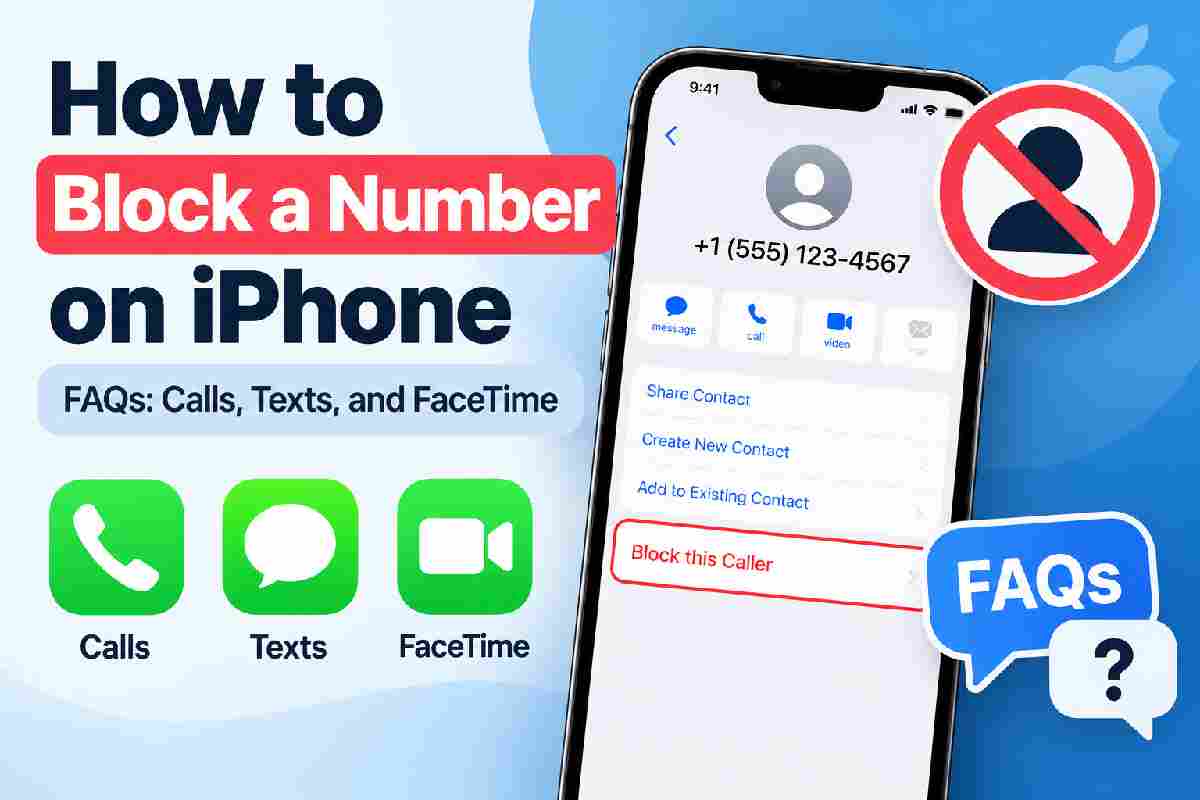
Open the Phone app and tap Recents. Find the unwanted number, tap the information icon (ⓘ) beside it, scroll down, and select Block Caller. Confirm your choice if prompted.
That’s it. No conversation required.
You can also block a saved contact through its information screen. Depending on your iOS version, the precise menu labels may vary, but the process is straightforward.
2. Block Their Calls. What About Their Texts?
Here’s the good news: Apple’s built-in blocking feature generally applies across ordinary phone calls, Messages, and FaceTime for the blocked contact.
In other words, you usually don’t have to block the same person three separate times. One action handles the main problem across Apple’s supported communication services.
However, blocking doesn’t erase previous conversations, and it won’t necessarily stop someone who switches to another number or account. Persistent scammers can be remarkably committed to being unwelcome.
If the person sends suspicious links or requests sensitive information, don’t click, reply, or share personal details. Block the sender and report the message as junk or spam when that option is available.
3. FaceTime Won’t Get a Free Pass
Someone keeps trying to FaceTime you? You can block them directly from the app.
Open FaceTime, locate the person or number in your call history, and tap the information icon beside the entry. Select Block Caller.
You can also block a saved contact through Apple’s Phone or Contacts tools. The built-in blocking system generally covers supported Apple communication services, so there’s no need to repeat the process everywhere. A small mercy. Your evening is yours again.
4. Unknown Numbers: Silence Them Without Blocking Everyone
Sometimes the problem isn’t one persistent caller. It’s the parade of unfamiliar numbers. On supported iOS versions, call-screening and silencing settings can help reduce interruptions from numbers that aren’t saved in your contacts. Look under Settings for the Phone app’s available options. The exact names and features depend on your iOS version.
Before switching on aggressive filtering, think about the calls you actually need. A delivery driver, healthcare provider, or potential employer might be calling from a number you haven’t saved.
Less noise is great. Missing an important appointment because your phone was too enthusiastic about screening calls? Not so much.
5. Blocked the Wrong Person? Undo It
Perhaps you blocked a friend during a moment of irritation. Perhaps your thumb made the decision before your brain caught up. It happens.
Go to the Settings app, and look up the settings for your phone app. There should be an option called something like “Blocked Contacts” (or similar on your iOS). Unblock them, and they will no longer be blocked. If you can’t find this option in the phone app, you may be able to manage blocked contacts from within either the Messages or FaceTime apps.
It is worth noting that messages and calls you received whilst the user was blocked will generally not show up again.
6. Why Are Spam Calls Still Getting Through?
There is one issue to be aware of with blocking phone numbers. Scammers, telemarketers and people who use caller ID spoofing can change phone numbers so will not always be blocked by your block list.
To help protect yourself further you can look into using a spam filtering service provided by your mobile carrier. Alternatively you could download a call blocking app. Take a look at PhoneShield’s guide on how to stop spam calls for more information.
Take Back Your Phone
Knowing how to block a number on iPhone helps you deal with persistent callers, unwanted texts, and FaceTime interruptions without much fuss. Apple’s built-in tools handle individual contacts well, while additional filtering can help reduce suspected spam.
Review your settings, block repeat offenders, and report suspicious messages when appropriate. Most importantly, never share passwords or verification codes with unexpected callers. Your iPhone is supposed to make life easier. It shouldn’t feel like a customer service desk for people you never wanted to hear from.